HowlTicket Account SMS Consent
How business account holders opt in to receive SMS from the HowlTicket platform number for two-factor authentication, security alerts, and account notifications.
Business Information
| Legal Name | CS Creative Concepts LLC |
| Doing Business As | HowlTicket |
| Website | https://howlticket.com |
| Privacy Policy | https://howlticket.com/privacy |
| Terms of Service | https://howlticket.com/terms |
| Support | https://howlticket.com/support |
What This Messaging Program Is
HowlTicket is a ticketing and booking SaaS platform. This messaging program applies to the HowlTicket platform phone number, which sends SMS only to authenticated HowlTicket business account holders (venue owners, administrators, and staff who have created or been invited to a HowlTicket account).
This is separate from the per-venue booking SMS program. Per-venue booking confirmations and
reminders are sent to a venue’s own customers from a dedicated venue-specific phone number
and are documented on each venue’s own SMS compliance page (/<venue-slug>/sms-compliance).
Messages from the HowlTicket platform number fall into three categories:
- Two-factor authentication (2FA) — one-time verification codes sent during login or when a sensitive action is performed.
- Security alerts — notifications about new sign-ins from unrecognized devices, password changes, and other account security events.
- Account SMS notifications — operational alerts the account holder has chosen to receive by text, such as shift scheduling changes, payout status, dispute alerts, or other notification types they have individually enabled.
No marketing messages are sent from this number.
How Opt-In Works
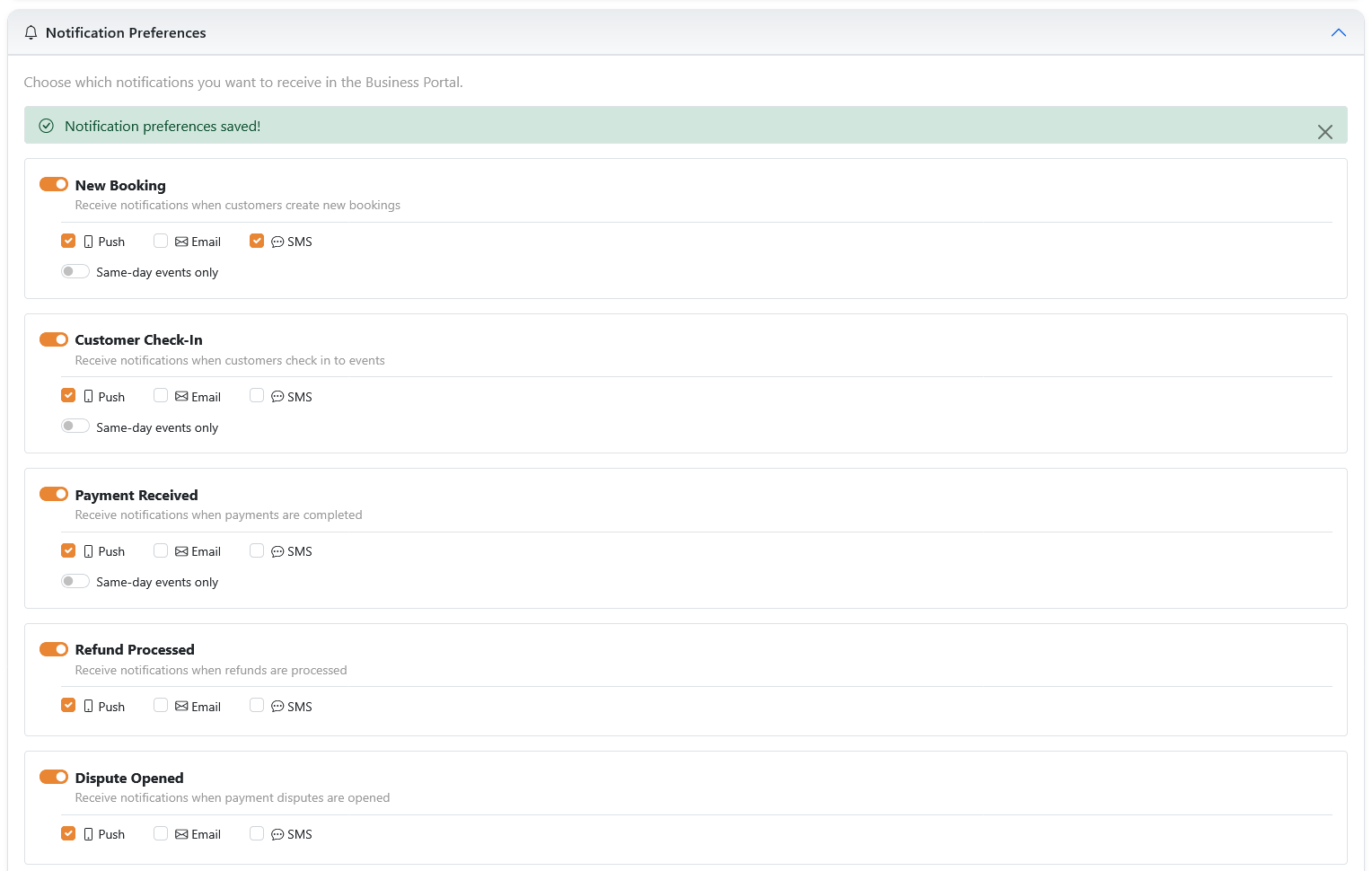
SMS is off by default. Account holders must manually enable SMS notifications through their account settings.
Create a HowlTicket business account
A user creates an account (or accepts an invitation to an existing one) and signs in to the
HowlTicket Business Portal at app.howlticket.com.
Add a mobile phone number to the profile
The user navigates to Settings → User → Profile Information and enters their mobile phone number in the Contact Phone field. A verification step confirms the user owns the number before any SMS can be sent to it.
Manually enable SMS in Notification Preferences
The user opens Settings → User → Notification Preferences. For each notification type the user wants by text, they toggle on the SMS channel switch. All SMS toggles are off by default.
A similar panel exists at Settings → User → Scheduling Notifications for shift-scheduling alerts, which also ships with the SMS channel off by default.
(Optional) Enable SMS-based two-factor authentication
Under Settings → User → Security, a user may separately enable SMS as a second-factor delivery method. 2FA codes are then sent to the verified number on sign-in. This is optional and opt-in.
Consent disclosure at the point of opt-in
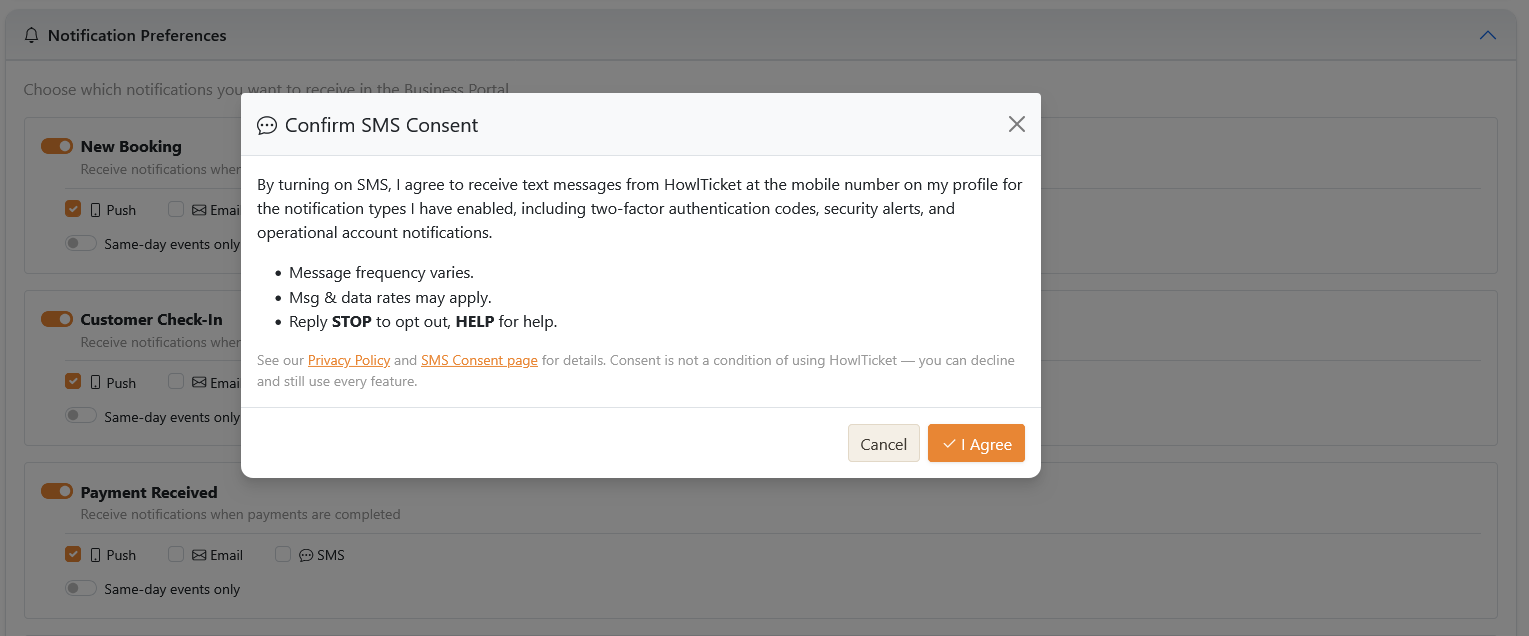
When a user turns on their first SMS toggle, a disclosure is shown that states the user consents to receive SMS from HowlTicket for the selected notification types, that message frequency varies, that message and data rates may apply, and that they can reply STOP to opt out or HELP for help. A link to this page and to the Privacy Policy is included.
Consent Disclosure Shown at Opt-In
The following text is displayed to the user the first time they enable an SMS channel toggle in Notification Preferences, and must be acknowledged before the change is saved:
By turning on SMS, I agree to receive text messages from HowlTicket at the mobile number on my profile for the notification types I have enabled, including two-factor authentication codes, security alerts, and operational account notifications. Message frequency varies. Msg & data rates may apply. Reply STOP to opt out, HELP for help. See our Privacy Policy and SMS Consent page.
Sample Messages
Message frequency varies based on the notifications the user has enabled and on account activity. Most users receive between 0 and a few messages per week.
Opt-Out & Help
To Opt Out
Reply STOP to any message at any time to immediately stop receiving SMS from the HowlTicket platform number. A single confirmation message is sent acknowledging the opt-out, after which no further messages are sent to that number.
Other recognized opt-out keywords: STOPALL, UNSUBSCRIBE, CANCEL, END, QUIT.
Users can also disable individual SMS channels at any time in Settings → User → Notification Preferences.
To Get Help
Reply HELP to any message for support information.
Email: support@howlticket.com
Website: https://howlticket.com
Data & Privacy
Mobile phone numbers and SMS consent status are used only to deliver the messages the account holder has enabled. They are not sold, rented, or shared with third parties for marketing purposes.
SMS delivery is provided by Twilio as HowlTicket’s telecom carrier. Phone numbers are shared with Twilio solely to transmit the messages the user has opted in to receive.
For full details on data handling, see the HowlTicket Privacy Policy and Terms of Service.
What It Looks Like